Music Video Maker · As of Oct 8, 2026 · 6 min read
How to Make a Music Video for Your Song
Pick a loop or a full music video, add your track, direct the shot, and choose the clip, model, format, and singer that fit the release.
Open Music Video Maker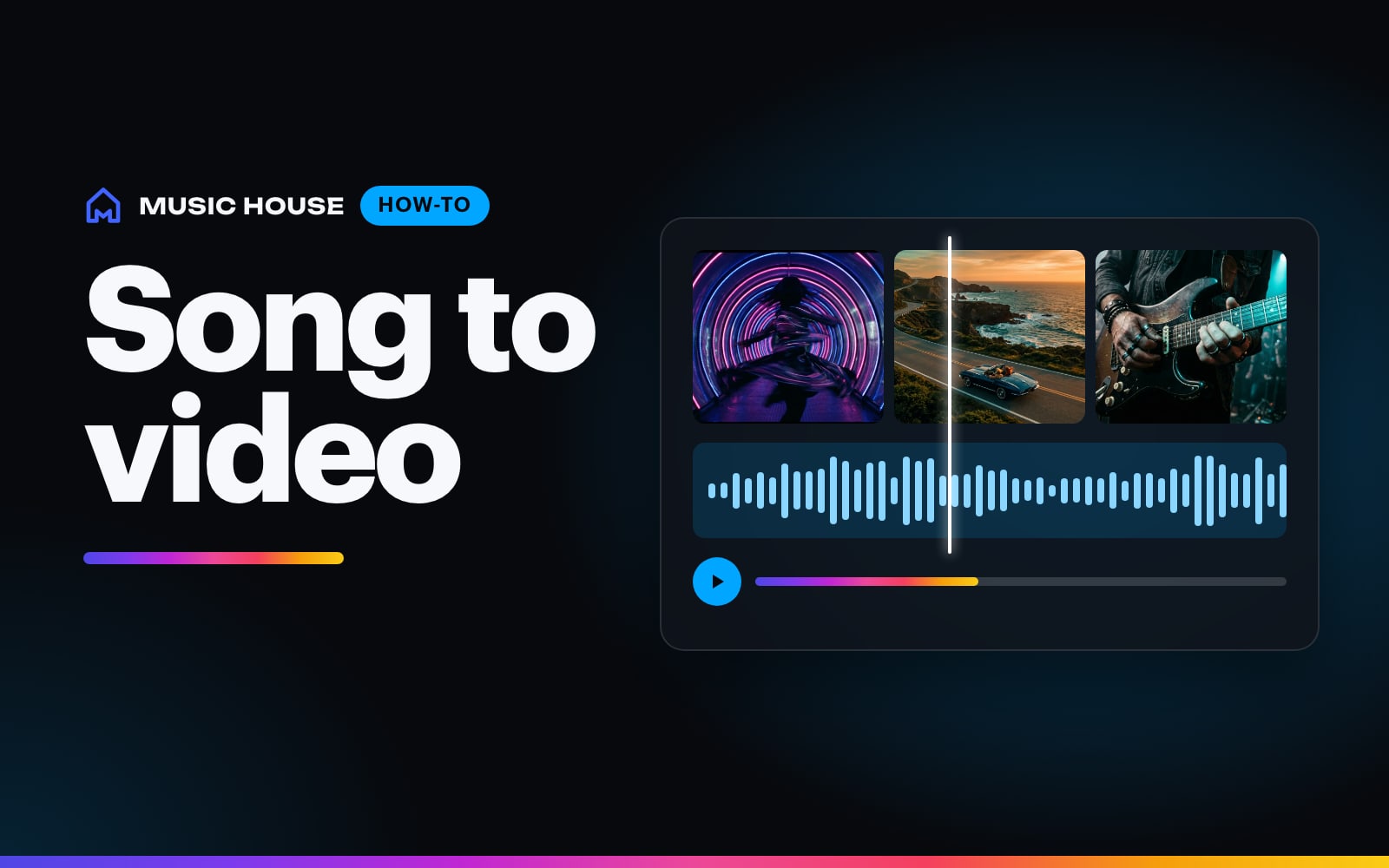
Music Video Maker turns your track and one visual brief into a rendered video. Start with the video type, attach the song, then direct a shot the model can actually stage.
1. Pick the video type
The three cards at the top set what you make:
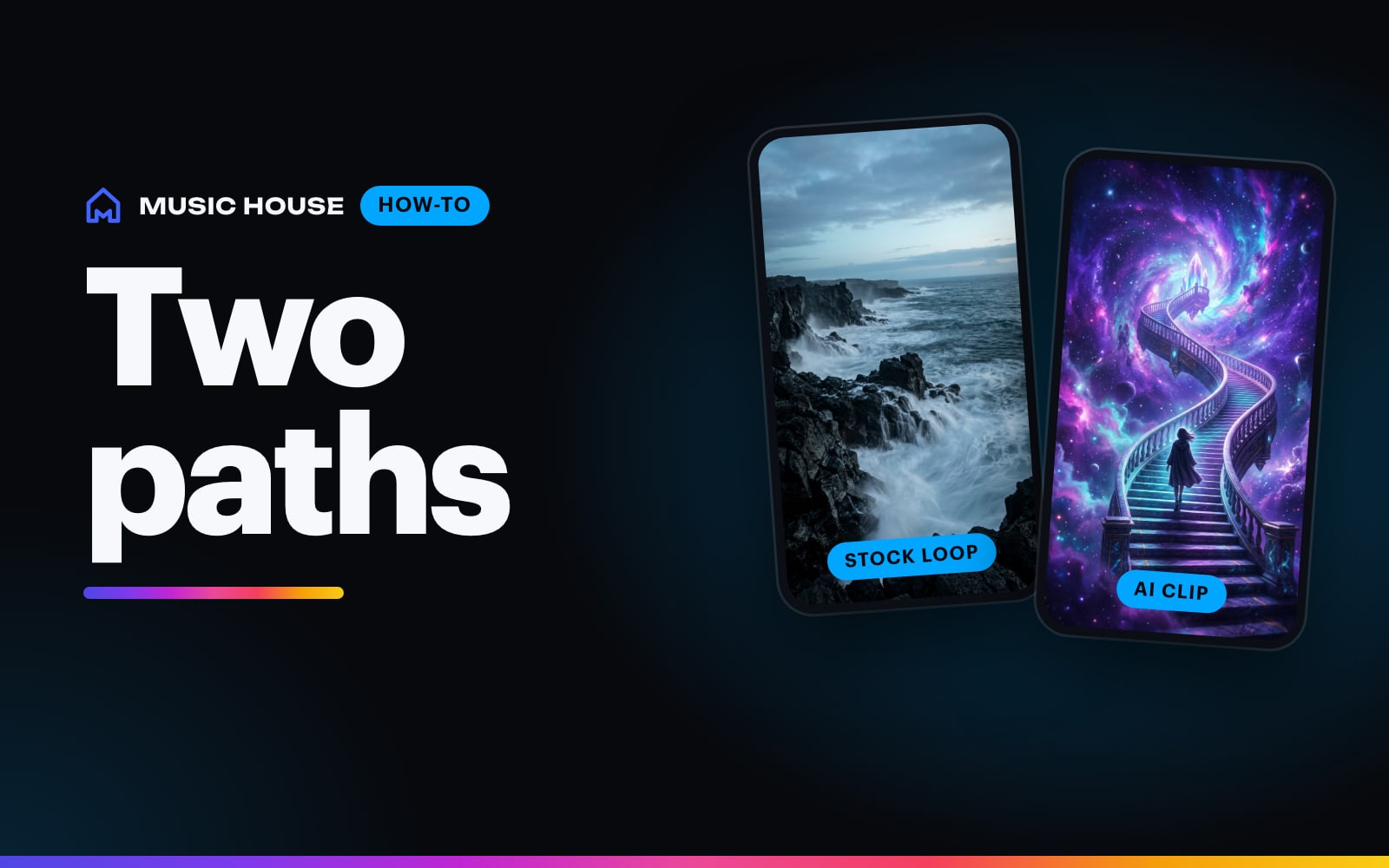
- Looping canvas: one clip that repeats under your song. Good for Spotify Canvas and Stories.
- Music video: the visuals change as your song does. Music House writes several parts from your song and your words, and each part plays once.
- Animate cover: your song cover or a preset, moving, as a silent 9:16 Spotify Canvas loop for 105 credits.
2. Add the audio
Choose one of your Music House songs, make a new song, or upload an MP3, WAV, M4A, or AAC file up to 50 MB. A music video needs a song or a file.
Then pick the Video length: 15s, 30s, 60s, or Whole song. For a fixed length, drag the waveform to choose the part that plays. A library song opens on its chorus when Music House knows where it is.
3. Describe one shootable shot
Name five things:
- Subject: who or what is on screen
- Setting: one specific place
- Light: the source and palette
- Action: what physically changes
- Camera: one movement or a locked frame
Example:
Medium profile shot of a singer alone inside a closed laundromat, midnight cobalt and warm machine light, condensation on the windows, she turns as every dryer stops at once, camera slowly circling clockwise.
For a looping canvas, use one subject, one location, and one camera move. For a music video, give the idea. Music House writes the parts, and Edit above Create lets you change any of them.
Attach photo puts your photo in the video. A photo always renders on Gemini Omni.
4. Choose the output settings
Open Advanced to set the clip length, singer, model, format, and resolution. The iOS and web makers show the same options.
Clip length and price
In a looping canvas, the Clip length is how long the AI clip runs before it repeats. It is the only setting that changes a loop's price. The video length is free.
| Model | 4s | 8s | 10s | Formats |
|---|---|---|---|---|
| Gemini Omni 1.1 Flash, 720p | 90 | 180 | 225 | 9:16, 16:9 |
| Gemini Omni 1.1 Flash, 1080p | 135 | 270 | 340 | 9:16, 16:9 |
| Wan 3.0, 720p | 90 | 180 | 225 | 9:16, 1:1, 16:9 |
| Wan 3.0, 1080p | 180 | 360 | 450 | 9:16, 1:1, 16:9 |
| MiniMax H3, 720p | 90 | 110 | 9:16, 1:1, 16:9 | |
| MiniMax H3, 1080p | 175 | 215 | 9:16, 1:1, 16:9 | |
| Kling 3.0 Pro | 105 | 205 | 255 | 9:16, 1:1, 16:9 |
| Seedance 2.5, 720p | 425 | 850 | 1,060 | 9:16, 1:1, 16:9 |
Gemini Omni with an 8s clip at 720p is the default. A Music video prices each part like a loop of its length. A 30s music video on Gemini Omni at 720p is three 10s parts, 675 credits. The price shows under Create once the parts are written.
Format
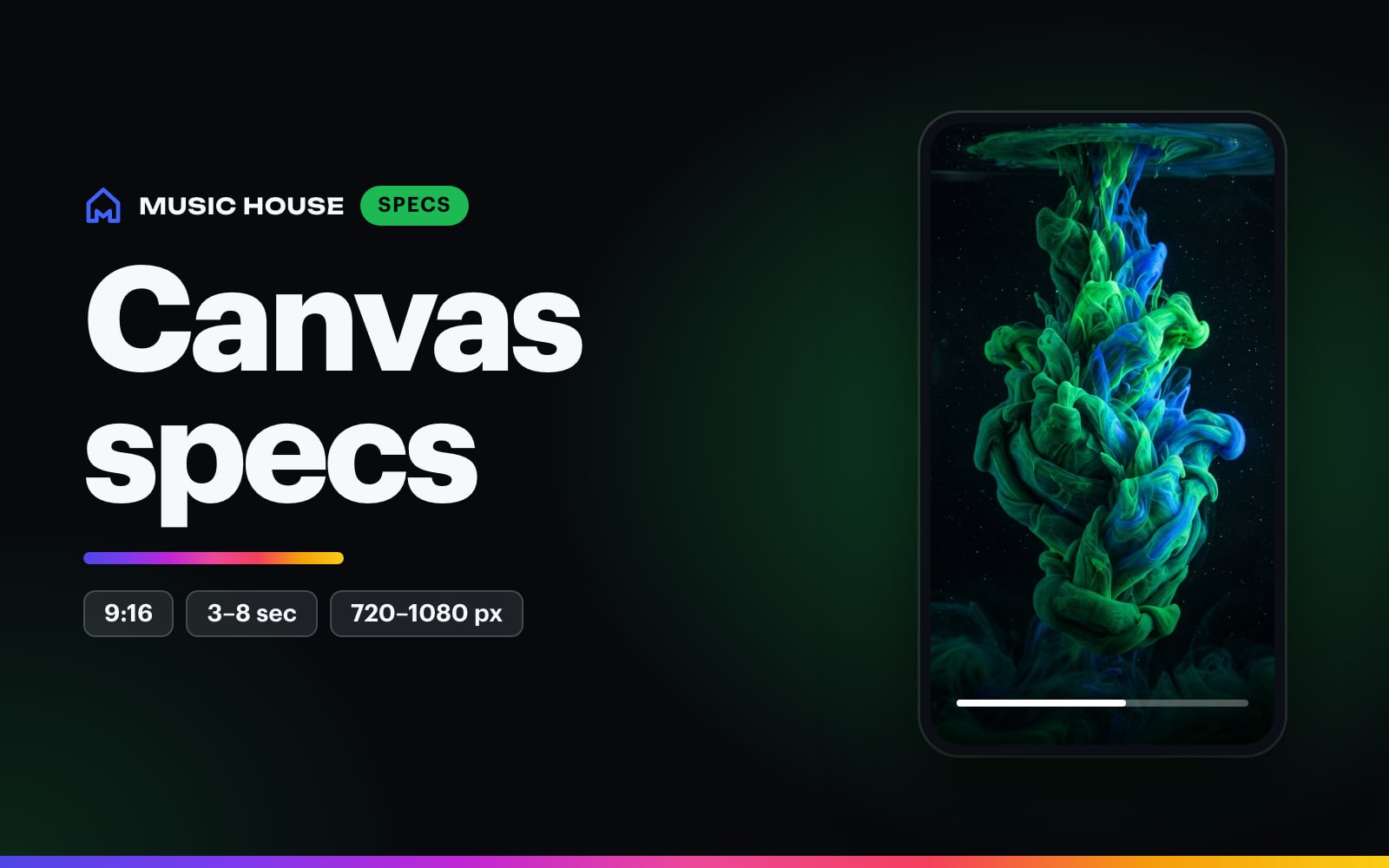
Choose 9:16 Reel for Reels, TikTok, and Shorts, 1:1 Square for feeds, or 16:9 Wide for YouTube and wide players. Gemini Omni does not offer 1:1.
Singer on screen
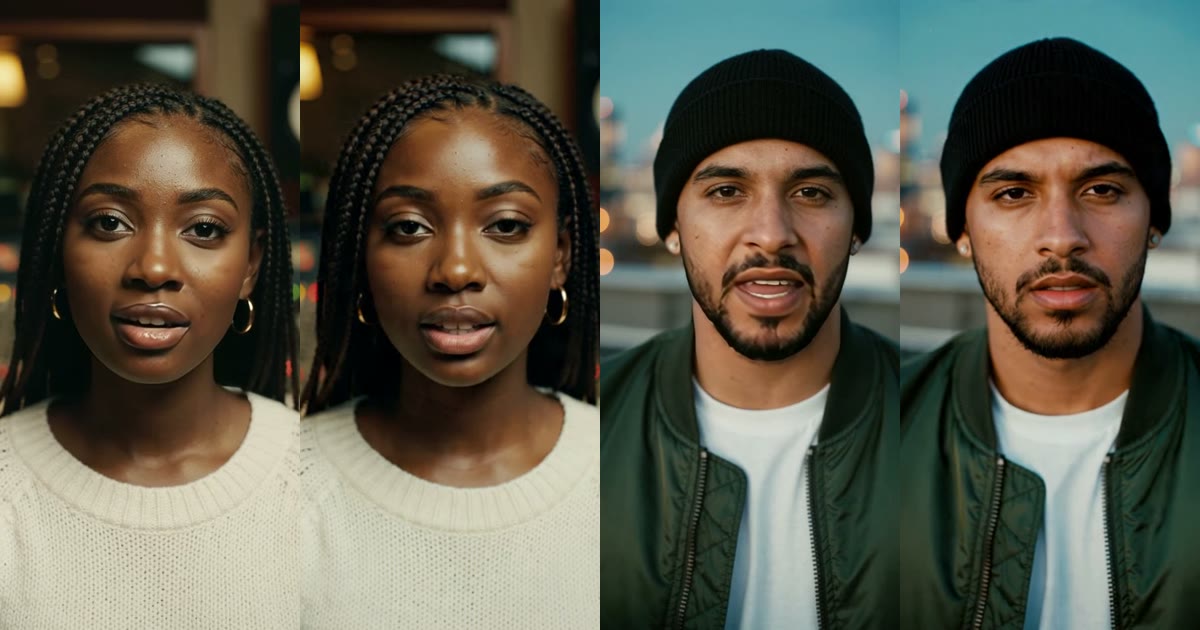
Faceless is the default. Singer performs adds a singer in close-ups for the sung parts, lip-synced to your vocals. It uses your photo if you attach one.
- It costs +155 credits for a 15s video and +285 for 30s.
- It works on 15s and 30s videos in 9:16 or 1:1, with a song that has vocals.
- It takes a few minutes longer.
If the window has no vocals, you get the faceless video and the singer credits back.
5. Read the card before you create
Music House checks your inputs before you create and can show one suggestion above Create. It flags a video with no song, a real artist the model cannot show, a prompt that asks for an uploaded photo, or a length in your words that does not match the length you picked. Tap the fix or ignore it. Create always works.
6. Match motion to the track
Use motion the camera can see: pushes in, tracks beside, crosses frame, flickers, ripples, or snaps into focus. For a quiet track, use one slow action. For a hard drop, save the largest visual change for the hook.
Generated text can drift between frames. Add the artist name, release date, captions, and end card after the visual is rendered.
7. Let Activity hold the render
Music Video Maker queues the job and saves the creation when it finishes. You can leave the maker after the queue is accepted and return through Activity or your library.
Open Music Video Maker, pick the video type, and direct one clear shot around the track.
Try it now
A 15s, 30s, 60s, or whole-song music video with your track under it.